
How to: Allocate a Learner Pass
To purchase a Learner Pass you need to be registered as an Administrator
Step by step guide
- Click Your Organisation Dashboard (If you can't see where to access this, click My Account at the top of the screen first).
- Click Allocate Learner Passes and view progress.
- You will now be able to see a list of all the Passes that are available to allocated. Underneath, you will also see a list of Learner Passes that have already been allocated.
Click Allocate on the Pass that you wish to use.
Check that it is the right pass for the driver and course being delivered: Internal or External - Internal Passes can only be allocated to drivers from within your organisation. External Passes can be allocated to any MiDAS registered organisation. Standard or Accessible - This will determine the certificate that the driver receives.
- Complete the details for the Driver who will be allocated the Pass.
- You will need to provide their first name, last name, and email address.
- If there is more than one Driver Assessor registered at your organisation, you will be able to choose which one to allocate the driver to.
- You need to confirm that the driver and their organisation have been provided with all the relevant information regarding MiDAS courses and that they have confirmed that they meet the driver licence requirements for undertaking a MiDAS Driving Assessment.
- Click Submit. The Driver will then be sent details about how to login and begin their theory course. Please note that it may take up to 1 hour for the welcome email to be sent. If it is not received, you are able to resend it through your account. We also advise that the learner looks in their junk folder. If it still isn't received, please get in touch.
Cancelling a Learner Pass
Once you have allocated a Learner Pass, it is possible to cancel it. You might need to do this if a Learner drops out and doesn't not complete the course, or if you've enterted the learner's email address incorrectly.
- To cancel a pass, click View Progress on the learner that you wish to cancel from the Allocate Learner Passes and view learner progress page
- You will then be able to see the Pass Status. If it is 'Inactive' then it means that the Learner has not created an online account and that the pass can still be reallocated. If the status is 'Active' then it will not be available to reallocate.
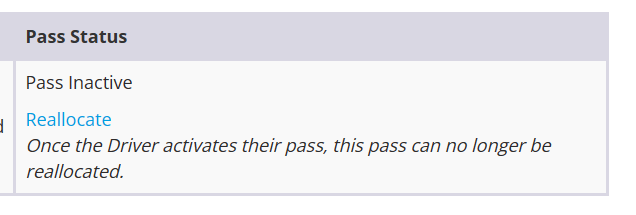
- If the pass is inactive and you wish to reallocate it, click 'Reallocate.'
- Tick that you confirm that you wish to cancel the Pass and click Submit.
- The Pass will then appear under your Available LMS Passes again.
Frequently Asked Questions
Do Learner Passes Expire?
Learner Passes do not expire. They will remain in your account until they are allocated.
What if I enter the wrong email address?
Please use the instructions above to cancel the Pass and then reallocate it.
How long do Learners have to complete the course?
There is no set deadline, however it is recommended that the time between a learner being allocated a Learner Pass and completing their driving assessment (and practical skills assessment where applicable) is no more than 90 days.